
Campaigns
Pause and resume a Campaign safely
Pause a running Campaign when audience data, message content, or channel status needs correction.
Before you start
Log in to the correct workspace and have the necessary permissions based on your role. Use only valid data and communication.
Step-by-step instructions
Follow these steps in order. You can keep this guide open while working in another Tautiva tab.
Open Campaigns and select the ongoing Campaign.
Read the delivery status and the numbers of delivered, failed, and blocked messages.
If there is a Pause button and you have permission, temporarily stop it if there is an operational reason.
Check the cause, such as an unstable channel, customer complaints, or issues with the recipient list.
After the issue is resolved and approved, use Resume if available.
Monitor the Delivery status again; do not assume sent messages can be recalled.
PRACTICAL EXAMPLE
Example from daily work
Example: there is a complaint from a recipient who should not be in the segment; the supervisor pauses and audits before proceeding.
This is a fictional training example. No real customer data was used.
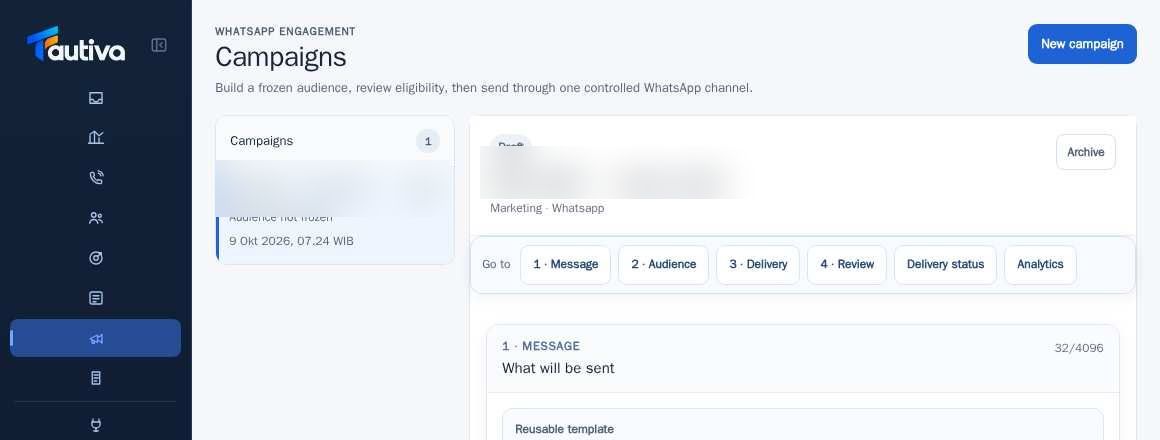
Expected result
Steps and results can be reviewed in the relevant module; send/save actions require SOP and permission.
Important notes
- Pausing stops the next process according to the system mechanism, not deleting messages already received by customers.
- You need sending permission to control an ongoing Campaign.
If something goes wrong
- Cannot Resume: check the Campaign status and quota/eligibility fulfillment.
- Failed messages: note the cause shown in the report before retrying.
This guide describes the interface reviewed on 13 October 2026. Documentation testing did not send real messages, invite users, process payments, or modify real customer records.