
Campaigns
Save reusable Campaign message templates
Templates help you draft Campaign messages faster. Always review the message and recipients before use.
Before you start
Log in to the correct workspace and have the necessary permissions based on your role. Use only valid data and communication.
Step-by-step instructions
Follow these steps in order. You can keep this guide open while working in another Tautiva tab.
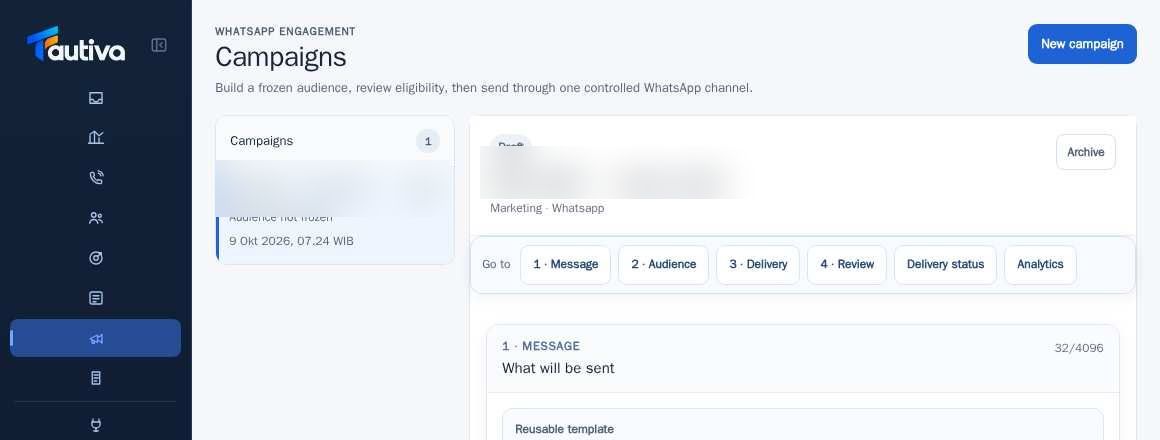
Open Campaigns and select the draft being prepared.
Go to 1 · Message and write a WhatsApp message using company-approved language.
If necessary, use supported variables: {{customer_name}}, {{first_name}}, or {{company_name}}.
Click Save current as template if you have template management rights.
To reuse, select Reusable template and review the loaded content.
Click Preview personalization before saving the draft or proceeding to review.
PRACTICAL EXAMPLE
Example from daily work
Example: 'Hello {{first_name}}, we want to inform you about the service you previously inquired about.' Send only if there is consent.
This is a fictional training example. No real customer data was used.
Expected result
Steps and results can be reviewed in the relevant module; sending/saving actions require SOP and permission.
Important notes
- Templates should not contain unapproved business promises or information.
- Variables outside the list may be rejected by the system.
If something goes wrong
- Preview fails: check if the customer has the required name or company data.
- Template not saved: check the Campaign manager role and required columns.
This guide describes the interface reviewed on 13 October 2026. Documentation testing did not send real messages, invite users, process payments, or modify real customer records.