
Campaigns
Create a Campaign message draft
A Campaign draft helps plan WhatsApp messaging. Saving a draft does not send any messages.
Before you start
Already logged in to the workspace and have the necessary permissions.
Step-by-step instructions
Follow these steps in order. You can keep this guide open while working in another Tautiva tab.
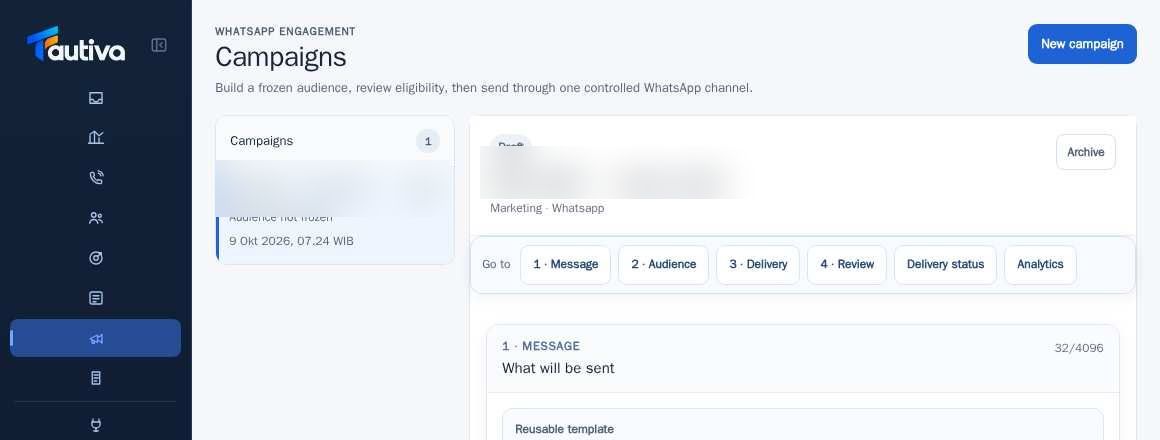
Open Campaigns, then click New campaign.
In step 1 · Message, fill in Campaign name and WhatsApp message.
Use Reusable template if the company template is already available.
Check the message content and customer privacy before clicking Save draft.
Use Preview personalization to check the name/variable without sending the message.
PRACTICAL EXAMPLE
Example from daily work
Example: Marketing writes information about service operating hours and saves it as a Draft without sending it to customers.
This is a fictional training example. No real customer data was used.
Expected result
Changes or information are visible on the screen according to the actions taken.
Important notes
- Supported variables are {{customer_name}}, {{first_name}}, and {{company_name}}.
- Do not run a real Campaign as a test. Delivery can actually be sent to customers.
If something goes wrong
- Invalid template? Use only supported variables.
This guide describes the interface reviewed on 13 October 2026. Documentation testing did not send real messages, invite users, process payments, or modify real customer records.