
Sales
Update the stage of a sales opportunity
Move an opportunity between stages only when the customer’s actual status has changed.
Before you start
Login to the correct workspace and have the necessary permissions according to your role. Use only valid data and communication.
Step-by-step instructions
Follow these steps in order. You can keep this guide open while working in another Tautiva tab.
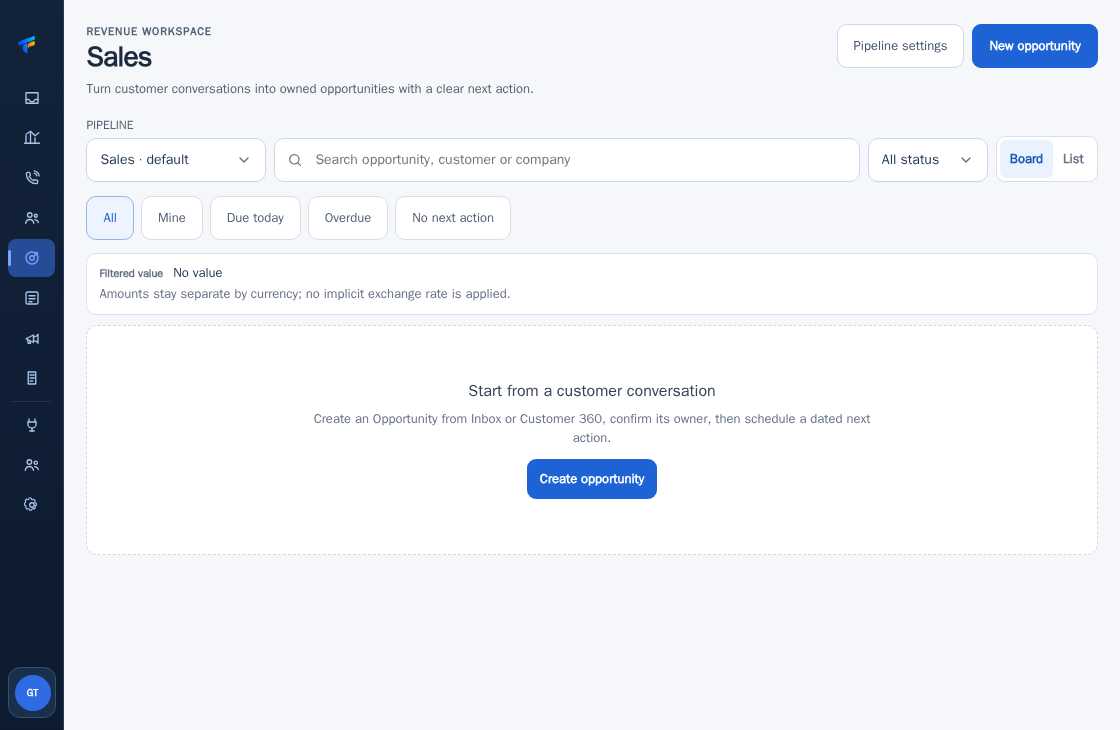
Open Sales and select Board or List to easily find the opportunity.
Use Mine if you only want to view opportunities that are your responsibility.
Open the opportunity you want to update and read its history and current stage.
Check the latest decisions or information from the customer.
Select the next stage via the stage/status control available for your role.
Record the reason for the change and ensure the next action schedule remains clear.
PRACTICAL EXAMPLE
Example from daily work
Example: customer requests an official offer; stage updated to offer stage after document submission.
This is a fictional training example. No real customer data was used.
Expected result
Steps and results can be reviewed in the relevant module; send/save actions require SOP and permissions.
Important notes
- Do not move to Won just because the customer shows interest.
- If there is no agreement, choose a stage that describes the actual situation.
If something goes wrong
- Stage cannot be changed: check permissions, status conditions, and opportunity owner.
- Opportunity does not appear: turn off Mine filter or check status filter.
This guide describes the interface reviewed on 13 October 2026. Documentation testing did not send real messages, invite users, process payments, or modify real customer records.