
Start using Tautiva
Change your password
Keep your account secure by changing your password through Profile & security.
Before you start
You still know your old password.
Step-by-step instructions
Follow these steps in order. You can keep this guide open while working in another Tautiva tab.
Open the account button at the bottom of the side menu, then select profile, or open the Profile & security page.
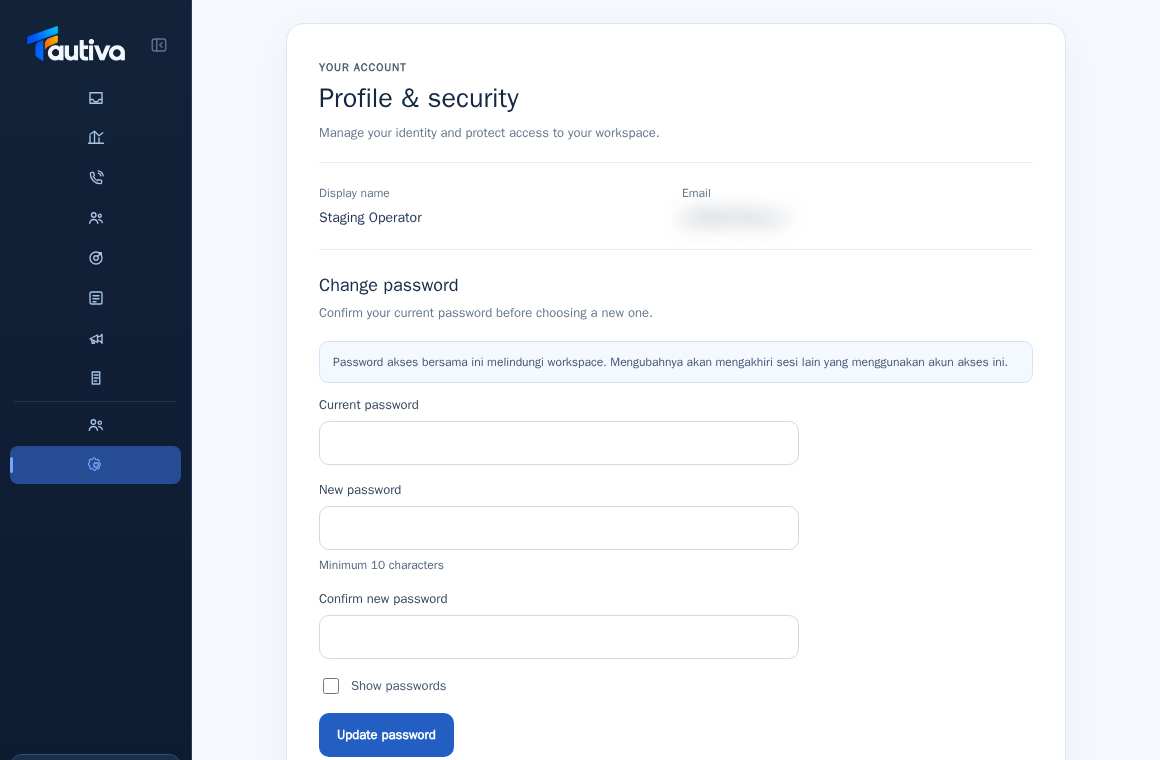
Look for the Change password section.
Fill in the Current password field with your current password.
Fill in the New password field with a new password of at least 10 characters and repeat it in the Confirm new password field.
Use Show passwords only if you need to check your typing, then click Update password.
Log in again if the system asks you to update your session.
PRACTICAL EXAMPLE
Example from daily work
Example: after obtaining a new work account, you change the temporary password to a password known only to you.
This is a fictional training example. No real customer data was used.
Expected result
Your password is updated and other sessions can be ended as a security measure.
Important notes
- Do not use passwords shared through group chats.
- Avoid storing passwords in files or notes that can be accessed by others.
If something goes wrong
- Old password not accepted? Contact the admin for secure assistance.
This guide describes the interface reviewed on 13 October 2026. Documentation testing did not send real messages, invite users, process payments, or modify real customer records.