
Inbox & customer support
Get familiar with the Inbox
Inbox is where agents see and manage customer WhatsApp conversations.
Before you start
You have already entered the workspace and have the necessary permissions.
Step-by-step instructions
Follow these steps in order. You can keep this guide open while working in another Tautiva tab.
Select the Inbox menu on the left.
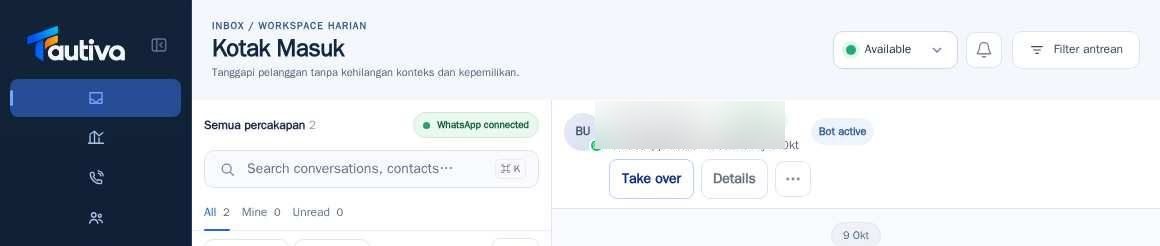
Note the list of conversations on the Queue panel. The name, message snippet, time, and status help you choose a task.
Use the All tab for all conversations, Mine for yours, and Unread for unread messages.
Use Needs reply to highlight those that need a response, or Bot active for conversations still being handled by the bot.
Click on a conversation to open the message content in the middle panel.
PRACTICAL EXAMPLE
Example from daily work
Example: a customer's message appears in All but not in Mine because it hasn't been assigned to the currently logged-in agent.
This is a fictional training example. No real customer data was used.
Expected result
The selected conversation is opened and customer information can be reviewed.
Important notes
- Don't assume a conversation has been handled just because the message has been read.
- The Bot active status means automation is still involved; check before taking over.
If something goes wrong
- Is the list empty? Reset the filter to All, then check the connection and last sync time.
This guide describes the interface reviewed on 13 October 2026. Documentation testing did not send real messages, invite users, process payments, or modify real customer records.