
Inbox & customer support
Search and filter conversations
Search and filters help you find a conversation without scrolling through the full list.
Before you start
You have logged in to the workspace and have the necessary permissions.
Step-by-step instructions
Follow these steps in order. You can keep this guide open while working in another Tautiva tab.
Go to Inbox.
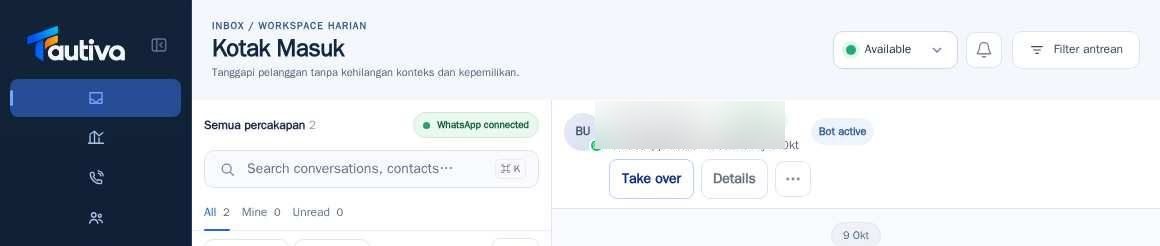
In the Search conversations box, type the customer's name or conversation information you remember.
Select All, Mine, or Unread according to your needs.
Press Filters to view advanced filtering.
If the results are not suitable, clear the active filter and repeat the search.
PRACTICAL EXAMPLE
Example from daily work
Example: an agent searches for a customer's chat using a partial name, then disables the Unread filter if the conversation isn't found.
This is a fictional training example. No real customer data was used.
Expected result
Changes or information are displayed on the screen according to the actions taken.
Important notes
- Active filters can make certain conversations not visible even if the data exists.
- When Queue sync interrupted appears, press Retry before assuming the list is up-to-date.
If something goes wrong
- Name found in Customers but not in Inbox? The customer may not have an active conversation in that channel.
This guide describes the interface reviewed on 13 October 2026. Documentation testing did not send real messages, invite users, process payments, or modify real customer records.