
Inbox & customer support
Send an image or file in a conversation
Only send a file when it is relevant, safe to share, and addressed to the correct customer.
Before you start
Login to the correct workspace and ensure proper permissions according to your role.
Step-by-step instructions
Follow these steps in order. You can keep this guide open while working in another Tautiva tab.
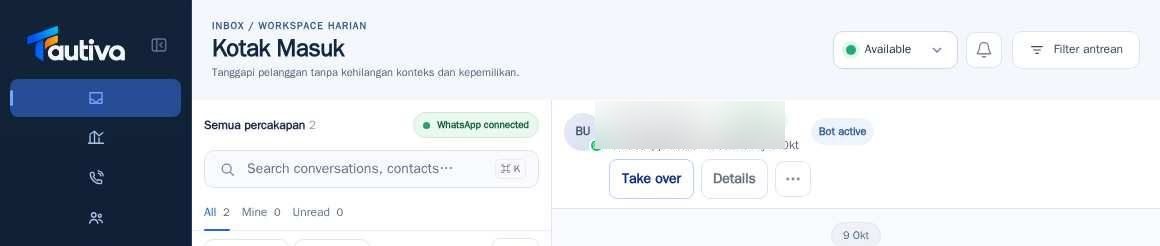
Open Inbox and select the conversation that has become your responsibility.
In the message writing column, find the Attach file button.
Select files allowed by the company policy.
Check the preview, file name, and recipient before sending.
Send the message according to the confirmation on the screen, then check the status in the conversation history.
If failed, note the validation message and ensure the file size and type are supported.
PRACTICAL EXAMPLE
Example from daily work
Example: send an official PDF brochure to a customer who has requested it; do not attach a spreadsheet of all customer lists.
This is a fictional training example. No real customer data was used.
Expected result
Actions are understood and results can be verified on the workspace page. For data changes, only perform them according to SOP.
Important notes
- Do not send identity documents, financial reports, or confidential data via chat without permission.
- Do not repeatedly press the resend button when the provider status is unclear.
If something goes wrong
- Attachment rejected: check the file type and size as stated in the system message.
- Upload takes too long: ensure a stable network and check if the message has appeared before retrying.
This guide describes the interface reviewed on 13 October 2026. Documentation testing did not send real messages, invite users, process payments, or modify real customer records.