
Team & administration
Check WhatsApp channel connections
Use Channels to check whether the workspace WhatsApp connection is ready to send and receive messages.
Before you start
You have logged in to the workspace and have the necessary permissions.
Step-by-step instructions
Follow these steps in order. You can keep this guide open while working in another Tautiva tab.
Go to the Channels menu.
Select the WhatsApp channel of the authorized workspace.
Check the Connected status and the Send & receive available description.
Check Last checked to find out the last check time.
If there is a disruption, note the status and coordinate recovery with the administrator.
PRACTICAL EXAMPLE
Example from daily work
Example: an officer cannot respond to messages because the WhatsApp connection is problematic; the administrator checks Connected and Last checked.
This is a fictional training example. No real customer data was used.
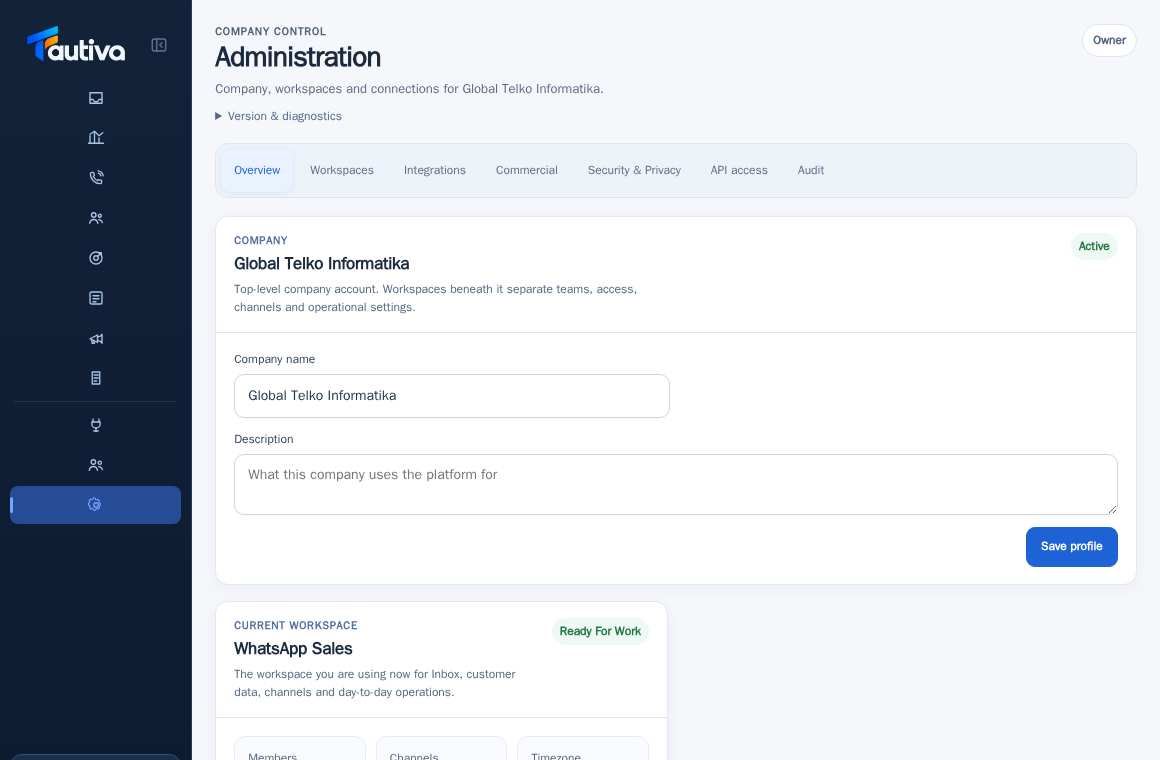
Expected result
Changes or information are displayed on the screen according to the actions taken.
Important notes
- Do not press Disconnect channel to try the function: this action stops sending and receiving until it is paired again.
- The WhatsApp number of the workspace is different from the agent's personal number.
- Tautiva determines the Channels address from the workspace's channel. Do not use the channel ID link example from another company. If Channels do not appear, ask the Admin to check if the channel has been configured.
If something goes wrong
- Disconnected? Do not repeat pairing without authorization as it can stop customer work.
This guide describes the interface reviewed on 13 October 2026. Documentation testing did not send real messages, invite users, process payments, or modify real customer records.