
Team & administration
Check company details and time zone
Company identity and time zone settings affect how work is displayed and recorded.
Before you start
Access to the workspace and the correct role.
Step-by-step instructions
Follow these steps in order. You can keep this guide open while working in another Tautiva tab.
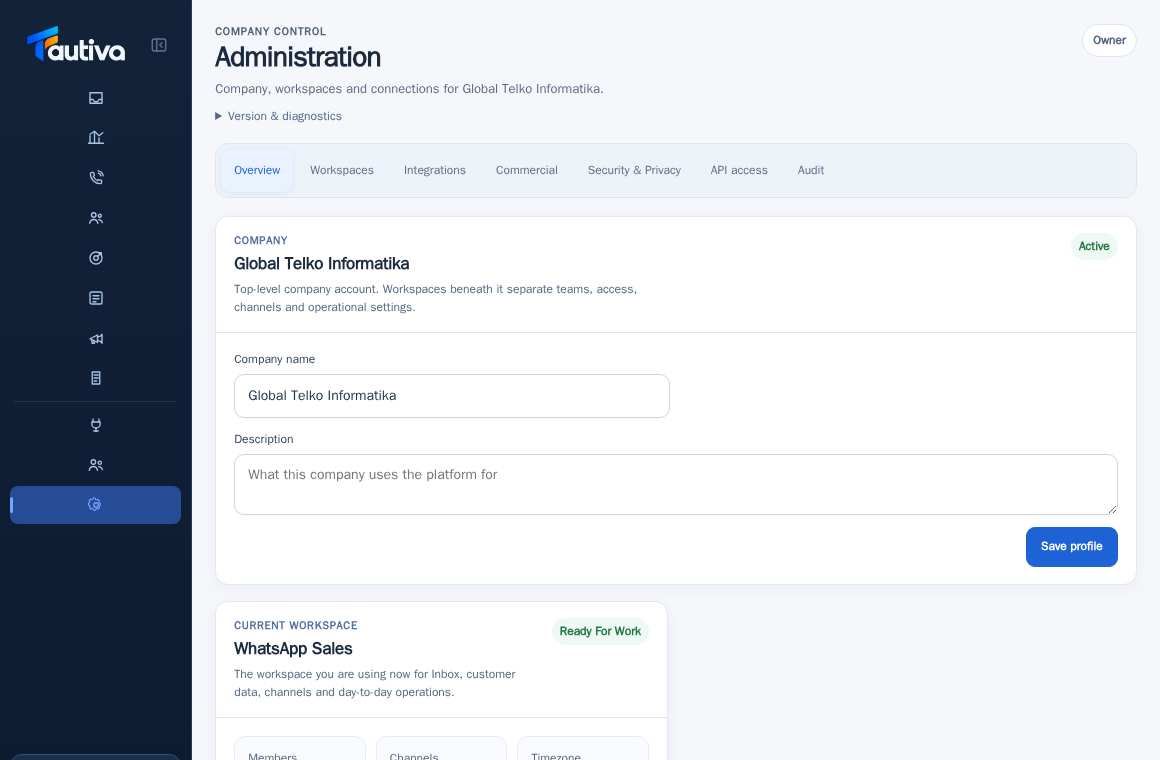
Open Administration and then the Overview section.
Ensure COMPANY shows the correct company.
Check CURRENT WORKSPACE, the number of Members, Channels, and Timezone.
If you are authorized and it is necessary, check the Company name and Description columns.
Determine the changes based on the company's decision, not by trial and error.
Click Save profile only after the impact and spelling have been checked.
For timezone or workspace changes, use the available settings tab according to your permissions.
PRACTICAL EXAMPLE
Example from daily work
Example: the company corrects the official name on the profile after being approved by the owner.
This is a fictional training example. No real customer data was used.
Expected result
You will know the safe steps and the results to be checked, without changing the data before the procedure is approved.
Important notes
- The displayed time zone may differ from the customer's time zone; consider the context of each report.
- Company and workspace are different boundaries; they should not be used interchangeably.
If something goes wrong
- Save profile is not active: there may be no changes or a Read Only account.
- Incorrect workspace name: do not change other companies' data; check your workspace selection.
This guide describes the interface reviewed on 13 October 2026. Documentation testing did not send real messages, invite users, process payments, or modify real customer records.