
Contact Center
Monitor Contact Center queues
Contact Center displays call queues and interactions for authorized agents and supervisors.
Before you start
Already logged in to the workspace and have the necessary permissions.
Step-by-step instructions
Follow these steps in order. You can keep this guide open while working in another Tautiva tab.
Open Contact Center.
Observe the summary of Waiting / ringing, Assigned / active, Wrap-up pending, and Members can be assigned.
Use the All, Waiting, Mine, Active, Wrap-up, or Done filters.
Select the interactions that need to be followed up on if any.
Press Refresh to load the latest summary.
PRACTICAL EXAMPLE
Example from daily work
Example: the Wrap-up tab contains completed calls that need to be recorded by the officer.
This is a fictional training example. No real customer data was used.
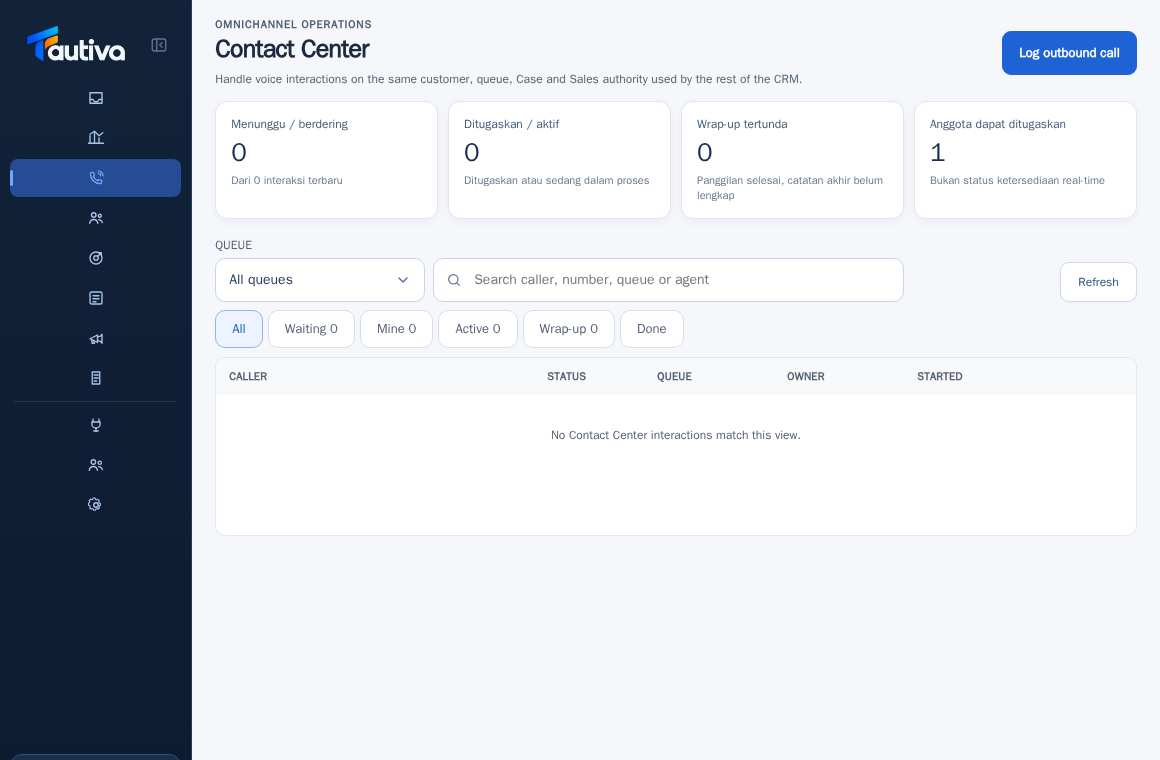
Expected result
Changes or information are visible on the screen according to the actions taken.
Important notes
- Members can be assigned does not mean all are currently available online.
- The Log outbound call feature is a record of interactions; do not assume it is an automatic phone call.
If something goes wrong
- Queue is empty? Make sure to check the All tab, refresh time, and provider conditions.
This guide describes the interface reviewed on 13 October 2026. Documentation testing did not send real messages, invite users, process payments, or modify real customer records.