
Contact Center
Read the supervisor Operations dashboard
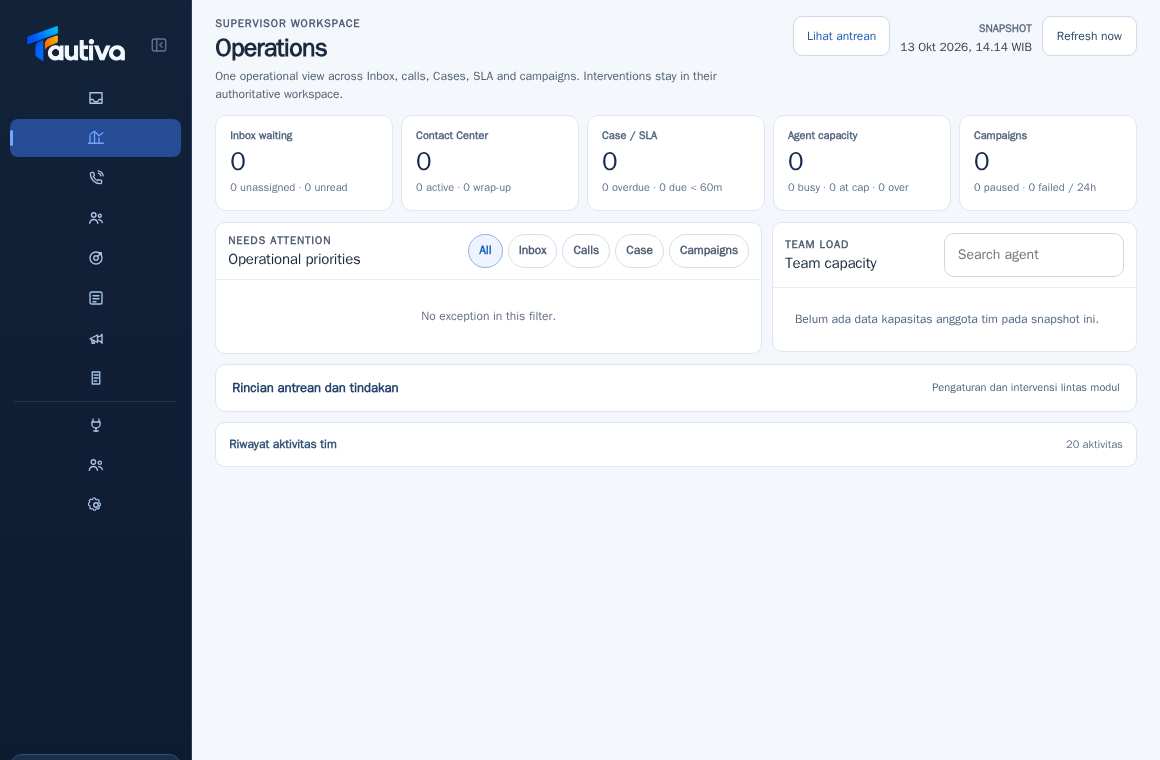
Operations summarizes team activity. Open the relevant module when you need details or to act.
Before you start
Already logged in to the workspace and have the necessary permissions.
Step-by-step instructions
Follow these steps in order. You can keep this guide open while working in another Tautiva tab.
Open the Operations menu.
Check the Inbox waiting, Contact Center, Case / SLA, Agent capacity, and Campaigns cards.
In the Operational priorities section, select All, Inbox, Calls, Case, or Campaigns.
View Team capacity for the agent workload condition.
Use Refresh now if you need to update the summary.
Open the source menu for actions: Inbox for chat, Cases for issues, or Campaigns for sending.
PRACTICAL EXAMPLE
Example from daily work
Example: when the Inbox waiting increases and Agent capacity is full, the supervisor checks the queue before moving tasks.
This is a fictional training example. No real customer data was used.
Expected result
Changes or information are displayed on the screen according to the actions taken.
Important notes
- The number cards show a snapshot at a certain time, not always the current condition every second.
- If there are no issues with the filter, it will display No exception in this filter.
If something goes wrong
- The summary is different from the list? Compare the snapshot time and open the source module to see the latest status.
This guide describes the interface reviewed on 13 October 2026. Documentation testing did not send real messages, invite users, process payments, or modify real customer records.