
Cases
Monitor Case status and follow-ups
Filter Cases to find unresolved customer issues and work needing attention.
Before you start
You have logged in to the workspace and have the necessary permissions.
Step-by-step instructions
Follow these steps in order. You can keep this guide open while working in another Tautiva tab.
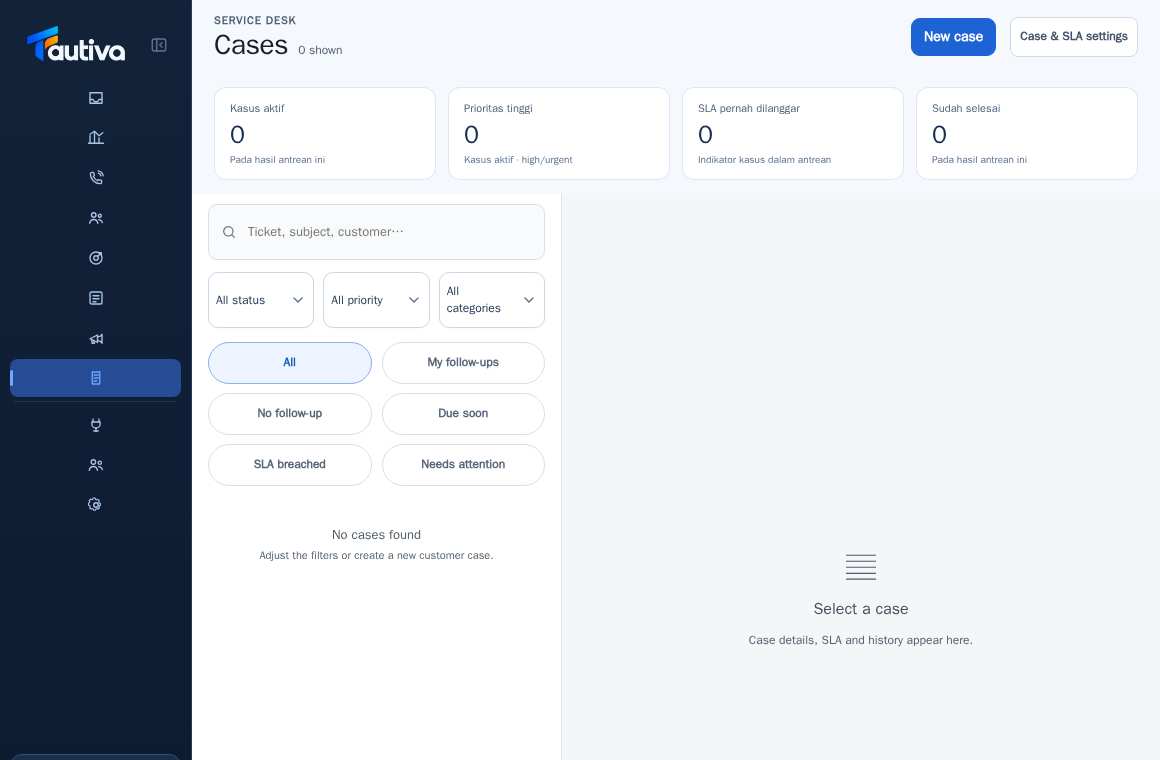
Open Cases.
Use status, priority, and category filters to narrow down the list.
Select My follow-ups to view the follow-up tasks assigned to you.
Use Due soon, SLA breached, or Needs attention to view urgent tasks.
Click on a Case in the list to read details, history, and SLA information.
If there are no results, recheck the filters before concluding that the data is empty.
PRACTICAL EXAMPLE
Example from daily work
Example: before the end of their shift, an agent opens My follow-ups and Due soon to ensure no actions are missed.
This is a fictional training example. No real customer data was used.
Expected result
Changes or information are displayed on the screen according to the actions taken.
Important notes
- The SLA breached status indicates that the target time was missed; escalate according to SOP.
- Completing a Case must be accompanied by proof of completion according to system settings.
If something goes wrong
- Is a Case missing? Return the tab to All and remove status/priority filters.
This guide describes the interface reviewed on 13 October 2026. Documentation testing did not send real messages, invite users, process payments, or modify real customer records.