
Cases
Schedule Case follow-ups and reminders
A Case follow-up can have its own assignee and due date, separate from the Case owner.
Before you start
Log in to the correct workspace and have the necessary permissions according to your role.
Step-by-step instructions
Follow these steps in order. You can keep this guide open while working in another Tautiva tab.
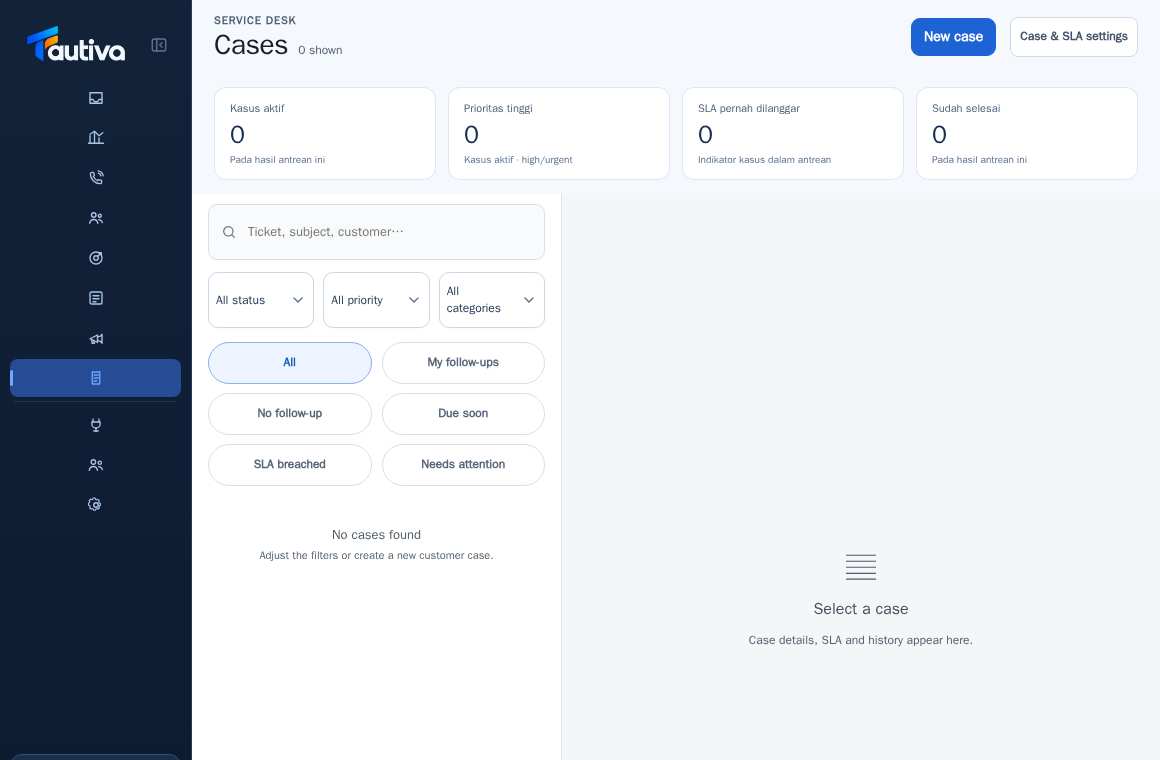
Open Cases and select the customer ticket being handled.
Read the status, history, and Service Level Agreement (SLA) before scheduling a task.
Look for the follow-up section in the Case details if available for your role.
Assign the responsible officer and follow-up time according to the customer commitment.
Save the task if available and check if it appears on My follow-ups.
After the work is completely done, update the task status according to the displayed options.
PRACTICAL EXAMPLE
Example from daily work
Example: promised to call the customer back tomorrow after the product check is complete.
This is a fictional training example. No real customer data was used.
Expected result
Actions are understood and results can be checked on the work page. For data changes, only perform them according to the Standard Operating Procedure (SOP).
Important notes
- The follow-up officer does not automatically become the primary Case owner.
- Use realistic dates and times according to the team's working hours.
If something goes wrong
- Follow-up is not visible in My follow-ups: check who the responsible person is.
- Reminders are not received: check Notifications and ask a supervisor to review the configuration.
This guide describes the interface reviewed on 13 October 2026. Documentation testing did not send real messages, invite users, process payments, or modify real customer records.