
Cases
Understand SLAs and response targets
An SLA sets response or resolution targets based on agreed service rules and working hours.
Before you start
Read Case permission; policy changes only by authorized administrators.
Step-by-step instructions
Follow these steps in order. You can keep this guide open while working in another Tautiva tab.
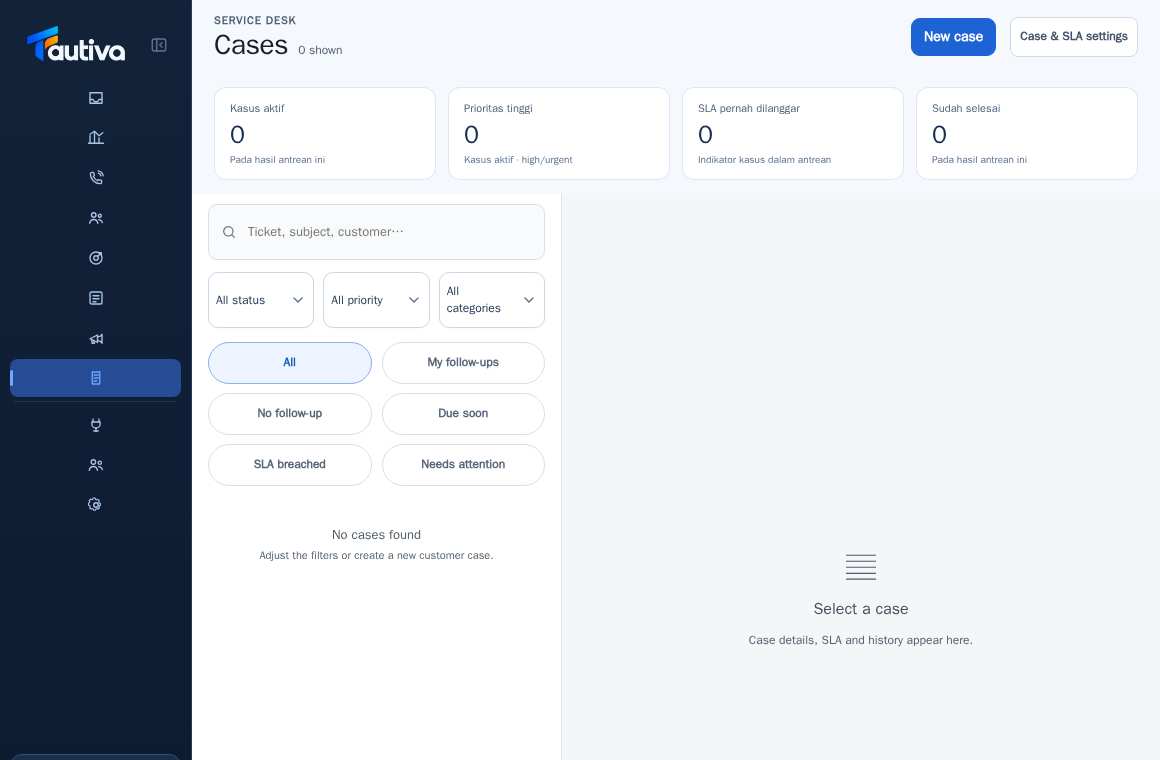
Open Cases and check the SLA indicator on the selected Case.
If necessary to know the rules, open Case & SLA settings (for allowed roles only).
View Business hours for the work calendar, and SLA policies for response or resolution targets.
Prioritize Cases with approaching or overdue deadlines according to supervisor procedures.
PRACTICAL EXAMPLE
Example from daily work
Example: A two-hour work response SLA is not the same as two calendar hours if there are breaks or holidays.
This is a fictional training example. No real customer data was used.
Expected result
Changes or information are displayed on the screen according to the actions taken.
Important notes
- Changing general policies does not automatically change the deadlines of old Cases.
- SLA response is calculated from the customer's response received through the channel, not just typing a message.
If something goes wrong
- Different deadlines? Check the workspace timezone, Business hours, holidays, and policy categories.
This guide describes the interface reviewed on 13 October 2026. Documentation testing did not send real messages, invite users, process payments, or modify real customer records.