
Cases
Resolve, close, and reopen a Case
Resolve a Case only when the customer issue has been handled and the outcome recorded.
Before you start
Log in to the correct workspace and have the necessary permissions based on your role.
Step-by-step instructions
Follow these steps in order. You can keep this guide open while working in another Tautiva tab.
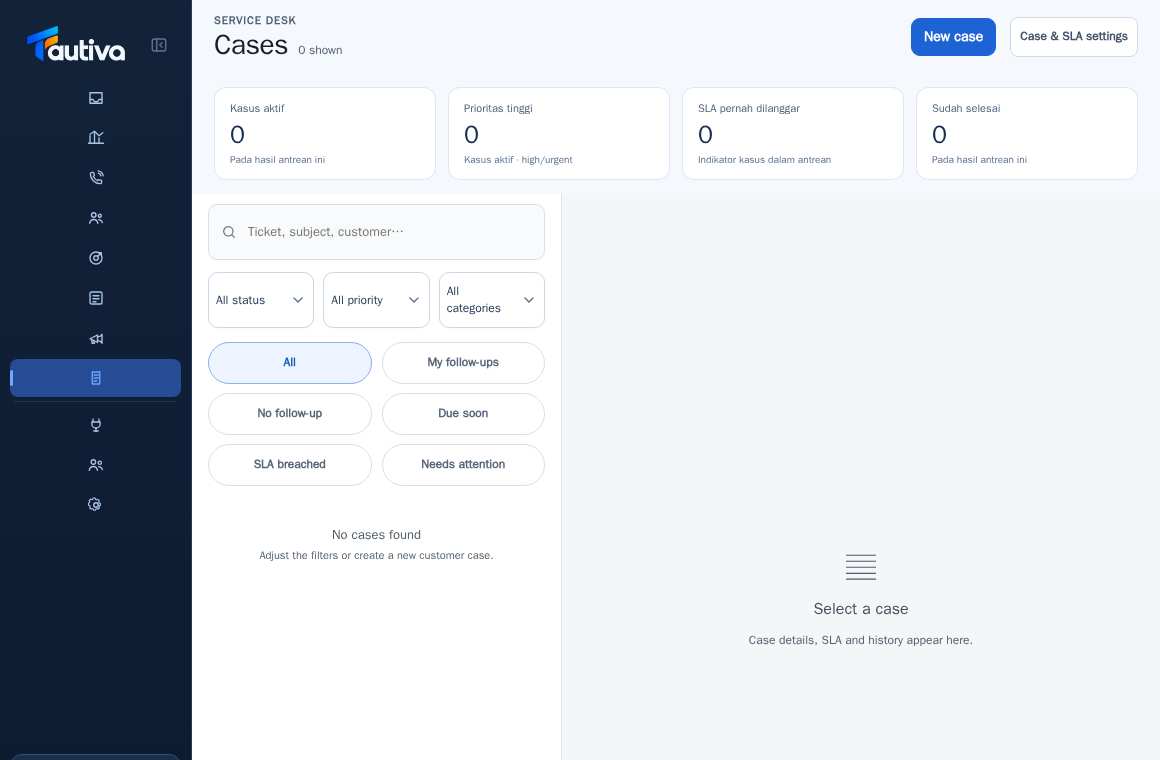
Open Cases, select the ticket you want to handle, and then check its status.
Ensure that customer service and communication actions have been completed.
Use the Resolve option or the available resolution action on the Case details.
Fill in the disposition/result of the resolution and the evidence requested by the system.
Check the status change before closing the Case according to the SOP.
If the problem reappears, use Reopen on the same ticket if allowed to keep the history intact.
PRACTICAL EXAMPLE
Example from daily work
Example: product disturbance has been fixed, customer confirmed success, and officer recorded evidence of confirmation date.
This is a fictional training example. No real customer data was used.
Expected result
The action is understood and the result can be checked on the work page. For data changes, only perform them according to the Standard Operating Procedure (SOP).
Important notes
- Do not resolve a Case with a note 'done' without evidence explaining the action.
- The history of resolved and reopened cases is maintained as a cycle, not overwriting old events.
If something goes wrong
- Resolve cannot be done: check the evidence column and mandatory category.
- There is no Reopen button: ensure the Case is indeed closed and your role has the necessary permissions.
This guide describes the interface reviewed on 13 October 2026. Documentation testing did not send real messages, invite users, process payments, or modify real customer records.