
Contact Center
Monitor team capacity and queue load
Operations helps supervisors balance team capacity and customer needs, not just count conversations.
Before you start
Access to the workspace and the correct role.
Step-by-step instructions
Follow these steps in order. You can keep this guide open while working in another Tautiva tab.
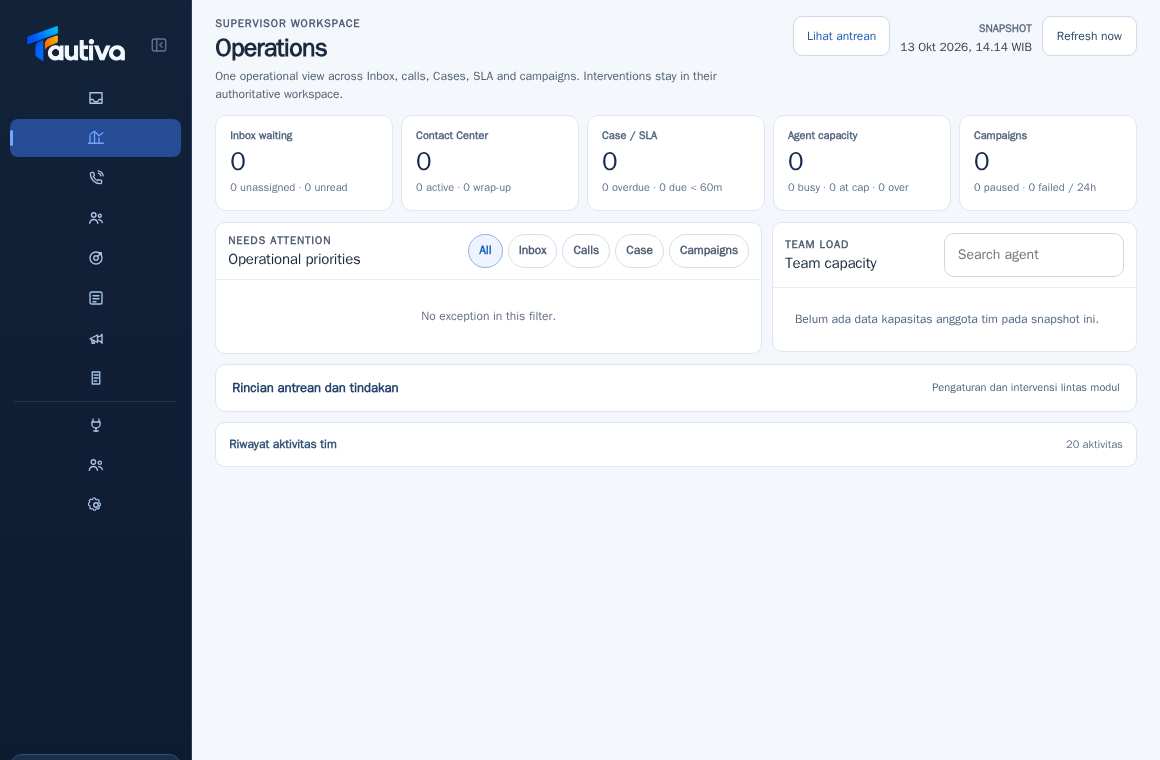
Open the Operations menu and press Refresh now if the data needs to be updated.
Check the Inbox waiting and details of unassigned or unread items.
Check Case / SLA to ensure target violations are not missed.
Open Agent capacity and Team capacity to view the capacity of the officers.
Select Operational priorities according to the type of problem.
Use the action link to the Inbox, Contact Center, or Cases to resolve the issue from the correct source.
PRACTICAL EXAMPLE
Example from daily work
Example: two queues are unmanned and all agents are busy; the supervisor checks capacity before redistributing.
This is a fictional training example. No real customer data was used.
Expected result
You will understand the safe steps and the results that need to be checked, without modifying data before the procedure is approved.
Important notes
- The dashboard numbers are a snapshot; check the update time before making a decision.
- Do not change the routing rules during busy hours without understanding the impact.
If something goes wrong
- Officers are not visible: check the Team and Eligible team.
- The queue is piling up even though there are Available agents: check capacity, assignment, and routing mode.
This guide describes the interface reviewed on 13 October 2026. Documentation testing did not send real messages, invite users, process payments, or modify real customer records.