
Cases
Respond to an SLA warning or breach
When an SLA deadline is at risk, take action and escalate rather than hiding the warning.
Before you start
Log in to the correct workspace and have the necessary permissions for your role.
Step-by-step instructions
Follow these steps in order. You can keep this guide open while working in another Tautiva tab.
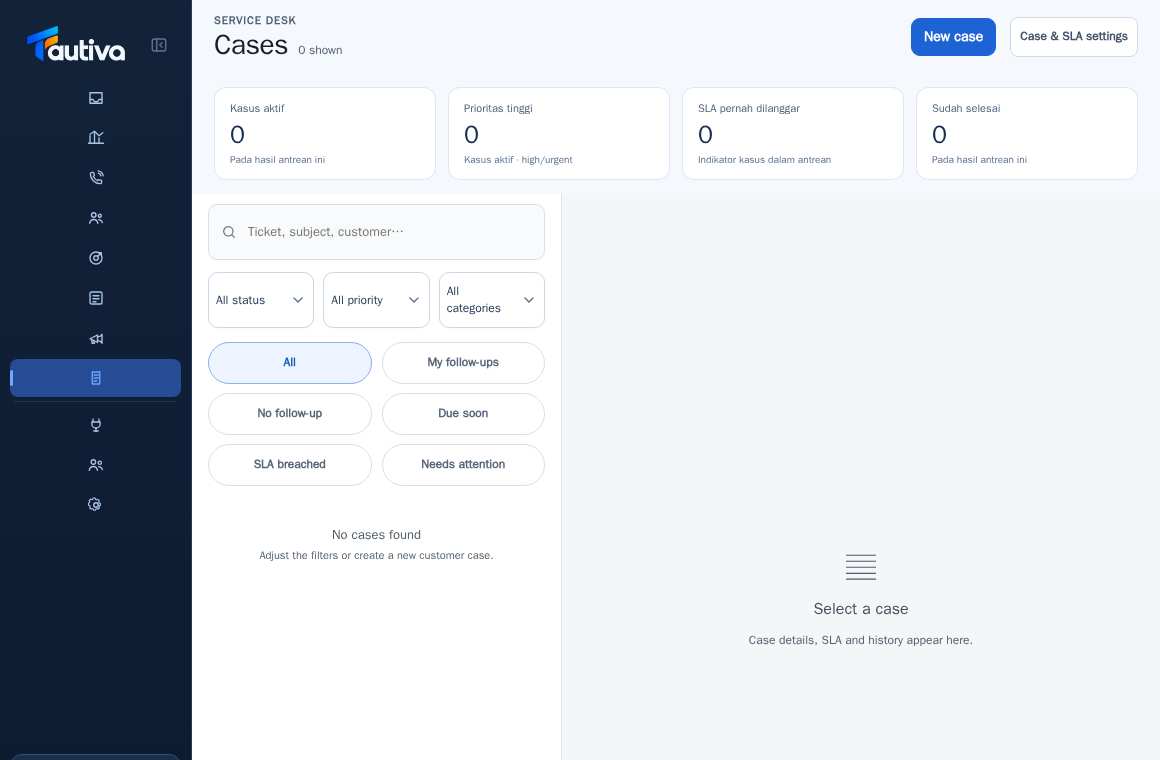
Open Cases and select Due soon, SLA breached, or Needs attention.
Check the affected ticket, customer, person in charge, and deadline details.
Determine if Supervisor or Owner assistance is needed according to policy.
Use escalation/acknowledgement control if available and permitted, or contact the person in charge internally.
Create clear follow-ups and communicate with customers according to SOP.
Re-check SLA and activity logs after action; do not alter the incident history.
PRACTICAL EXAMPLE
Example from daily work
Example: high-priority ticket approaching the end of the SLA response when the agent is full, supervisor helps with task allocation.
This is a fictional training example. No real customer data was used.
Expected result
Actions are understood and results can be checked on the work page. For data changes, only perform them according to the Standard Operating Procedure (SOP).
Important notes
- Breaches that have already occurred will still be recorded even if the SLA is later paused.
- Escalation is not the same as transferring ticket or chat ownership.
If something goes wrong
- SLA breached filter is empty but the customer is complaining: check the filter status and working hours.
- Escalation is not available: ensure the correct role and Case/SLA configuration.
This guide describes the interface reviewed on 13 October 2026. Documentation testing did not send real messages, invite users, process payments, or modify real customer records.