
Common problem Situation
Why a menu or action is unavailable
Menus and actions appear according to your role, permissions, and your company’s plan.
Before you start
You have logged in to the workspace and have the necessary permissions.
Step-by-step instructions
Follow these steps in order. You can keep this guide open while working in another Tautiva tab.
Check that you are logged in to the correct workspace.
Check if the menu is hidden due to a narrow screen display; open the side navigation if available.
Ask the administrator to check the Role on the Team.
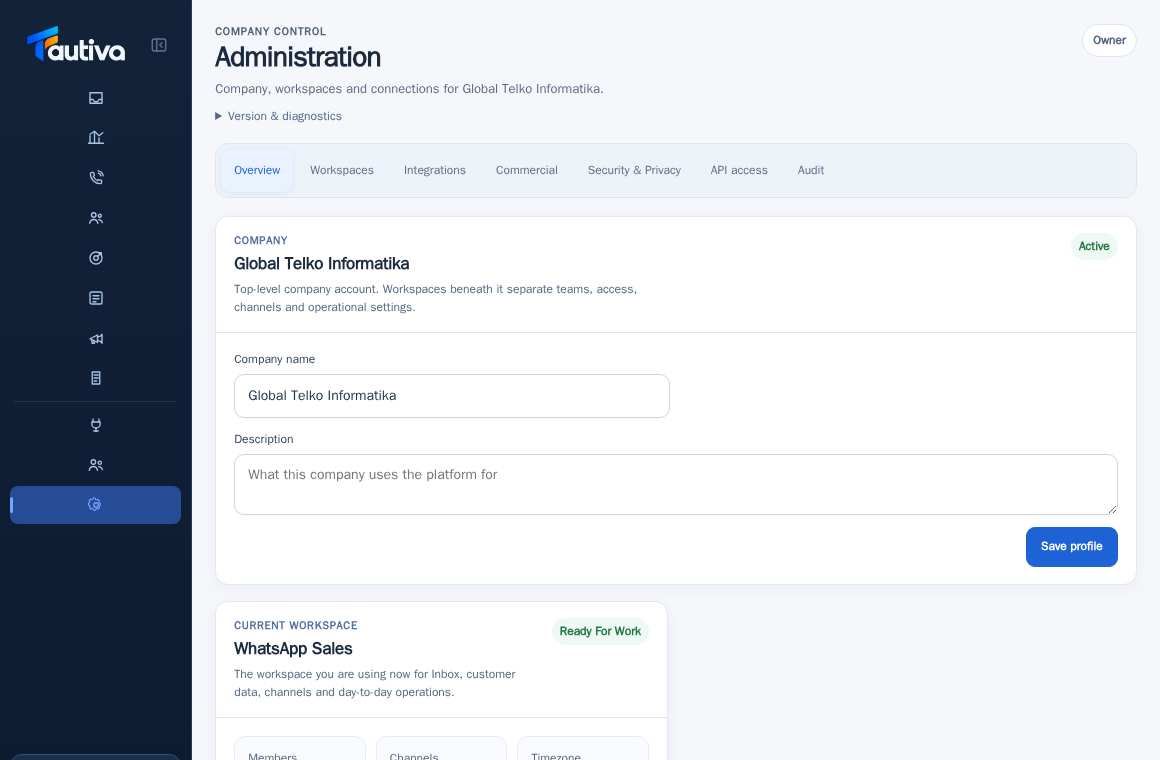
If the feature cannot be used, ask the admin to check the Available product features on Administration.
Note the page name and error message to be forwarded to the administrator.
PRACTICAL EXAMPLE
Example from daily work
Example: the Agent does not see the configuration settings. The Admin checks the Role and package, not giving a Superadmin account.
This is a fictional training example. No real customer data was used.
Expected result
Changes or information are displayed on the screen according to the actions taken.
Important notes
- Viewers usually do not have permission to create or modify data.
- Do not borrow an Admin account to bypass access restrictions.
If something goes wrong
- Can't select the button? Check the access rights and package status first.
This guide describes the interface reviewed on 13 October 2026. Documentation testing did not send real messages, invite users, process payments, or modify real customer records.