
Inbox & customer support
Use advanced filters and bulk actions safely
Advanced filters and bulk actions help with large workloads, but changes may affect many conversations.
Before you start
Log in to the correct workspace and have the necessary permissions according to your role.
Step-by-step instructions
Follow these steps in order. You can keep this guide open while working in another Tautiva tab.
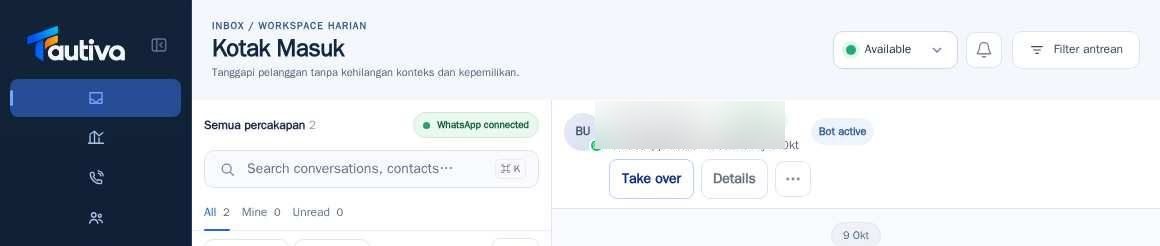
Open Inbox, then click Filters to open advanced filters.
Narrow down the results based on queue, assignee, status, tag, or date according to the available options.
Check the list of results and the number of conversations before taking action.
For accounts with bulk permissions, select Select visible or the checkbox per conversation.
Review all selected chats before changing the assignee, queue, tag, or closing chats in bulk.
If the option is not available, do not borrow a colleague's account; ask an authorized supervisor.
PRACTICAL EXAMPLE
Example from daily work
Example: a supervisor selects only unassigned conversations in the General queue and then assigns them to an active agent.
This is a fictional training example. No real customer data was used.
Expected result
Actions are understood and results can be checked on the work page. For data changes, only perform according to SOP.
Important notes
- Mass actions are only for roles with permissions and can affect a maximum of 100 chats per request based on the engineering contract.
- Use narrow filters before selecting multiple conversations.
If something goes wrong
- Select visible does not appear: may be hidden in the filter panel or the account does not have bulk permissions.
- Changes are rejected: check if all chats and targets are in the active workspace.
This guide describes the interface reviewed on 13 October 2026. Documentation testing did not send real messages, invite users, process payments, or modify real customer records.