
Inbox & customer support
Add an internal chat note without sending it to the customer
Internal notes help teammates understand a conversation when responsibility changes.
Before you start
Login to the correct workspace and have the necessary permissions according to your role.
Step-by-step instructions
Follow these steps in order. You can keep this guide open while working in another Tautiva tab.
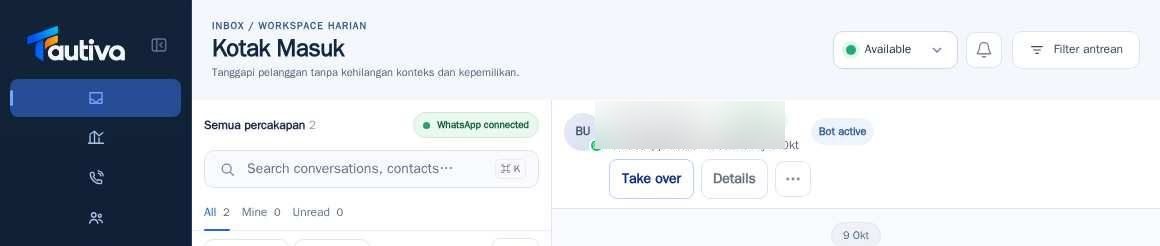
Open Inbox and select the customer chat.
Click Details to open conversation information.
Select the Team tab to view the internal collaboration area.
If there is a new note control, write a summary of the problem and actions already taken.
Mention other staff using the mention facility if their account and access rights are available.
Save the note; check that the note appears in the team area, not in the customer's message history.
PRACTICAL EXAMPLE
Example from daily work
Example: 'Customer requested a schedule change. Order number has been verified; waiting for supervisor approval.'
This is a fictional training example. No real customer data was used.
Expected result
Actions are understood and results can be checked on the workspace page. For data changes, only perform them according to the SOP.
Important notes
- Do not send confidential information or other customer data to notes.
- The Customer notes area on the profile is different from collaboration notes in one conversation.
If something goes wrong
- Note is not visible: check if you are in the Team tab, not Customer or Activity.
- Mention failed: select an active member who actually has access to the workspace.
This guide describes the interface reviewed on 13 October 2026. Documentation testing did not send real messages, invite users, process payments, or modify real customer records.