
Inbox & customer support
Close a conversation after it is resolved
Close conversations only after the customer’s request is resolved according to your team’s procedures.
Before you start
Login to the correct workspace and have the necessary permissions based on your role.
Step-by-step instructions
Follow these steps in order. You can keep this guide open while working in another Tautiva tab.
Select the chat that no longer requires a response or follow-up.
Re-read the message content and ensure all requests have been handled.
If there are unresolved issues, create or link a Case first.
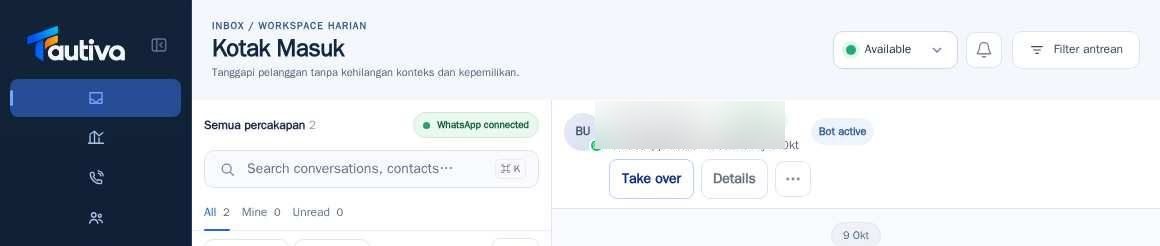
Open More conversation actions in the conversation area.
Select Close if your permission allows it and review the confirmation that appears.
Ensure the chat status changes according to the result and other users are aware of the follow-up via Case or team notes.
PRACTICAL EXAMPLE
Example from daily work
Example: the customer has received a confirmation answer and there are no remaining follow-ups.
This is a fictional training example. No real customer data was used.
Expected result
The action is understood and the result can be checked on the work page. For data changes, only perform them according to the SOP.
Important notes
- Do not close chats just to make the queue appear empty.
- Closing a chat does not automatically resolve an active Case.
If something goes wrong
- The Close button is not visible: check your role and chat status.
- The chat becomes active again after the customer sends a new message: check the workspace workflow rules.
This guide describes the interface reviewed on 13 October 2026. Documentation testing did not send real messages, invite users, process payments, or modify real customer records.